A program in about a minute
You type
Build Sam a 4-week knee program for home.
Connect GymEd to Claude or ChatGPT, then just ask. It builds the program, logs the session and writes your reports. You check it, and you're done.
Pick your AIClaude Free plan worksChatGPT Paid plan
Build Sam a 4-week knee program for home.
Sam did Session A today. Pain 2 out of 10.
How did Sam go these last two weeks?
Write my session note for Sam's visit today.
Claude or ChatGPT reads your client's record in GymEd and writes the first draft. You check it, then send it the way you do now.
Write Mia's NDIS report for her plan review. Use her sessions and tests since 1 July.
Write Jack's WorkCover progress report. Show how his sessions and test notes changed since his first visit.
Write a one-page letter to Ruth's GP about her Medicare sessions.
Write Ken's DVA end of cycle report for his GP. Use this cycle's sessions and tests.
Compare Mia's first and latest fitness test notes in a table. What changed the most?
Write Sam a one-page progress report he can read. Show his tests then and now.
Swap in your client's first name. Add anything GymEd doesn't know, like their goal or their job.
Start GymEd free for 14 days. No credit card. Then connect Claude or ChatGPT in 5 minutes.
You need three things. Then pick your AI and follow its steps.
Claude's free plan works. ChatGPT needs a paid plan. Set it up on a computer once.
No GymEd yet? Start free.
New accounts have it on. Joined before 17 November? Email us and we'll turn it on.
Ask for AI accessConnect GymEd to Claude
Step 1 of 7
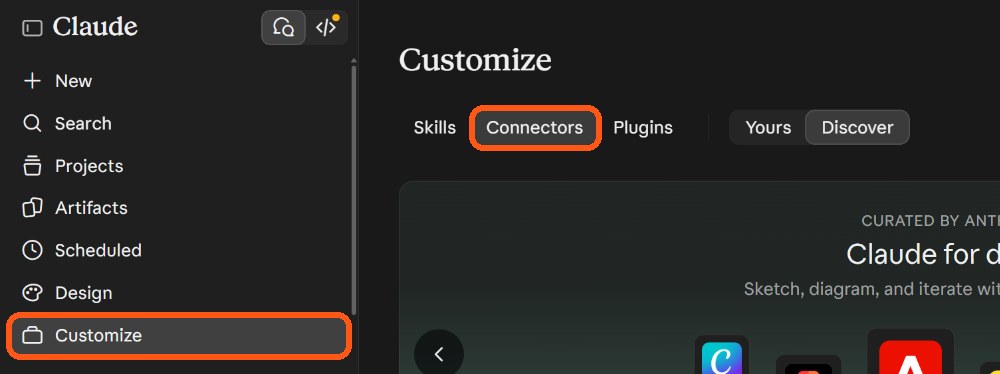
In Claude, click Customize on the left. Then click Connectors at the top.
Small window? Connectors may be in a drop-down at the top.
Step 2 of 7
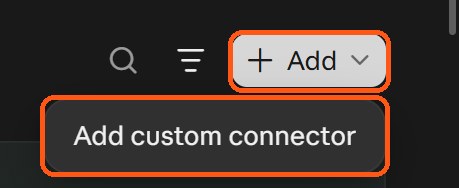
Click + Add at the top right. Then click Add custom connector.
Step 3 of 7
Type GymEd in the first box. Paste the address in the second box. Click Continue.
GymEdhttps://cms.gymed.com.au/mcp/professional 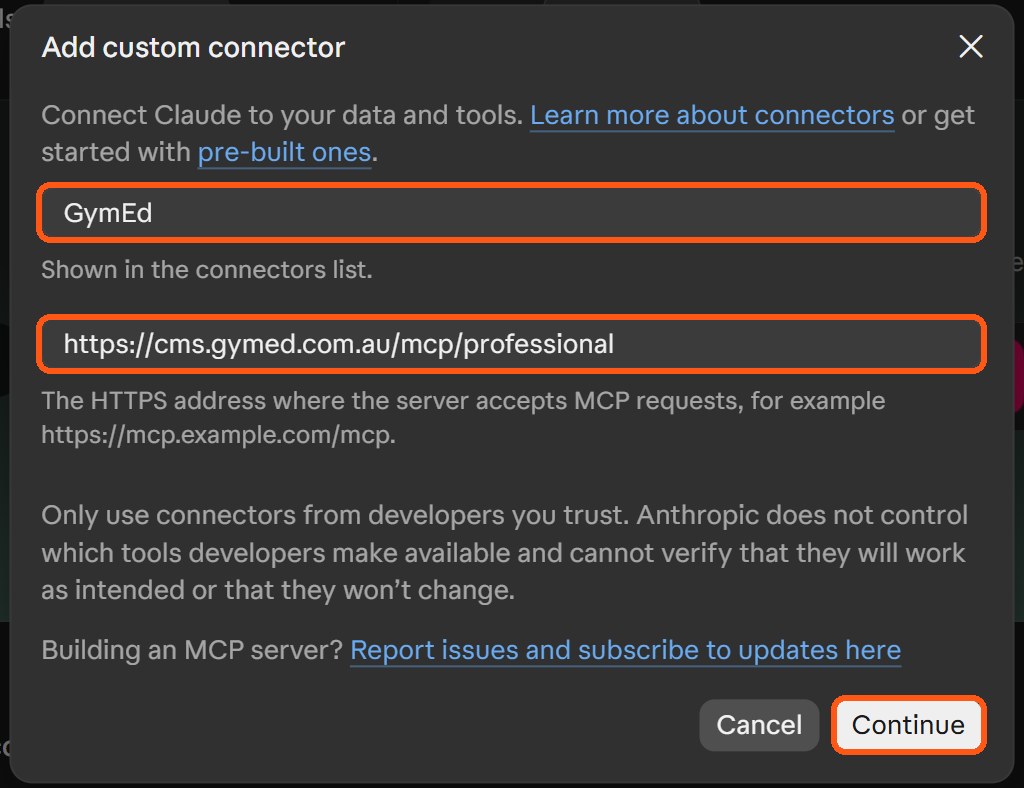
Step 4 of 7
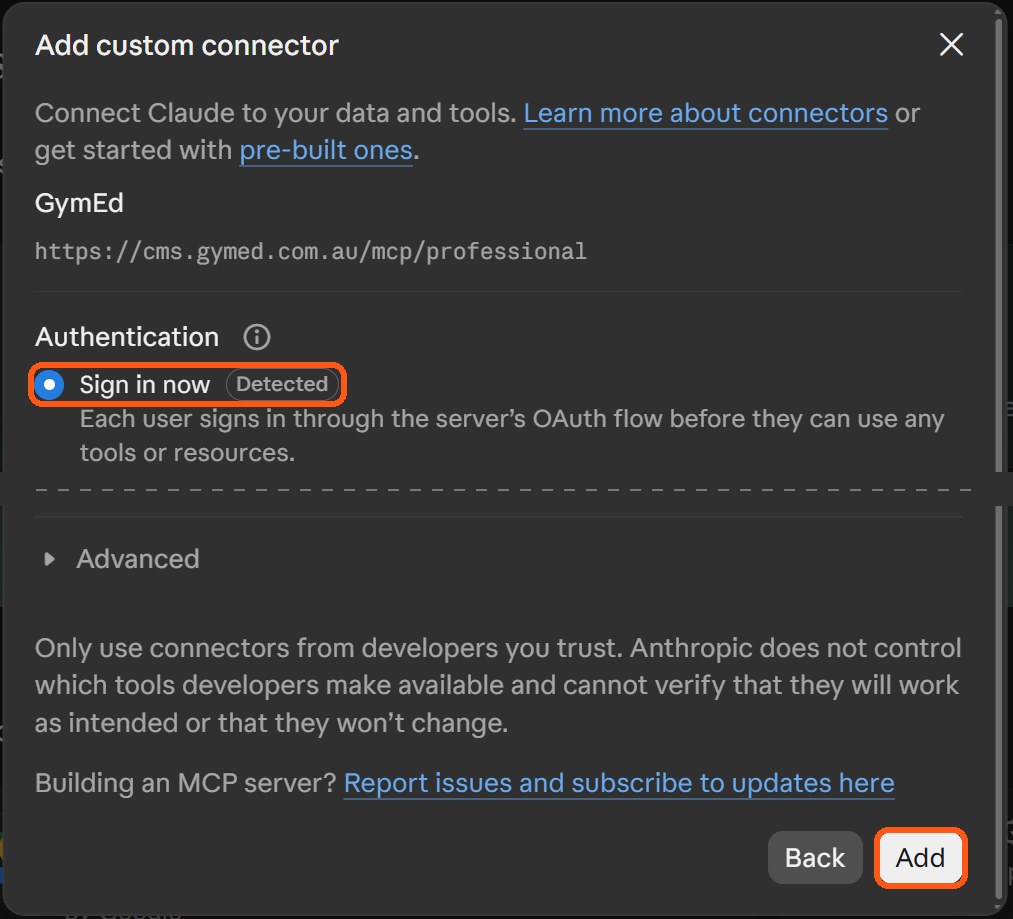
Claude sets up the sign-in for you. Don't change anything. Scroll down and click Add.
Step 5 of 7
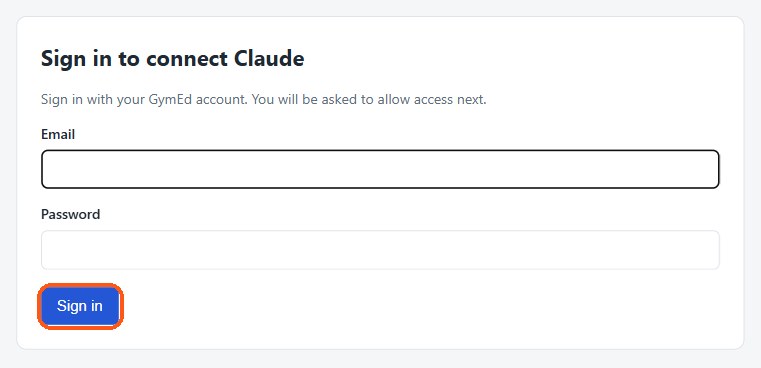
A GymEd page opens. Sign in with your GymEd email and password. On the next page, let Claude in. Then you're back in Claude.
No GymEd page? Go to Customize, then Connectors. Find GymEd and click Connect.
Step 6 of 7
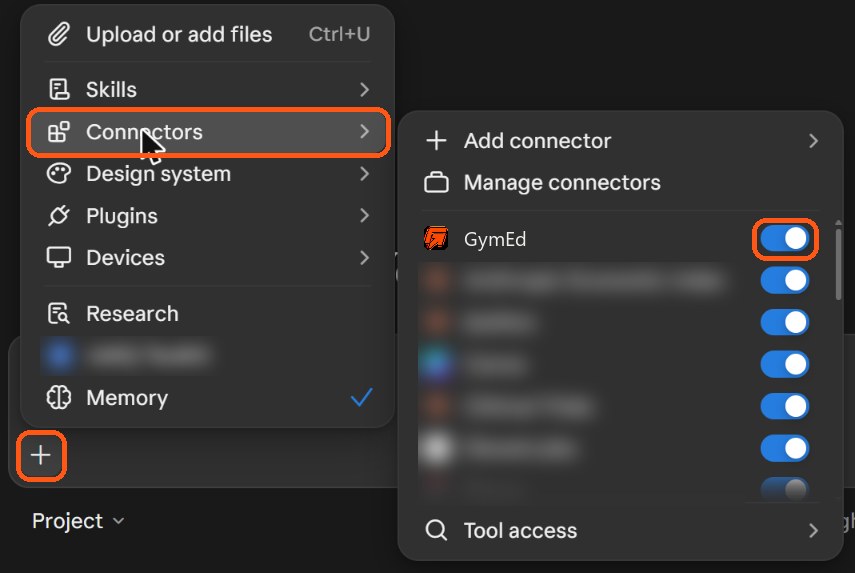
Start a new chat. Click the + under the message box. Click Connectors. Check GymEd is on.
Your list will look different. Look for GymEd.
Step 7 of 7
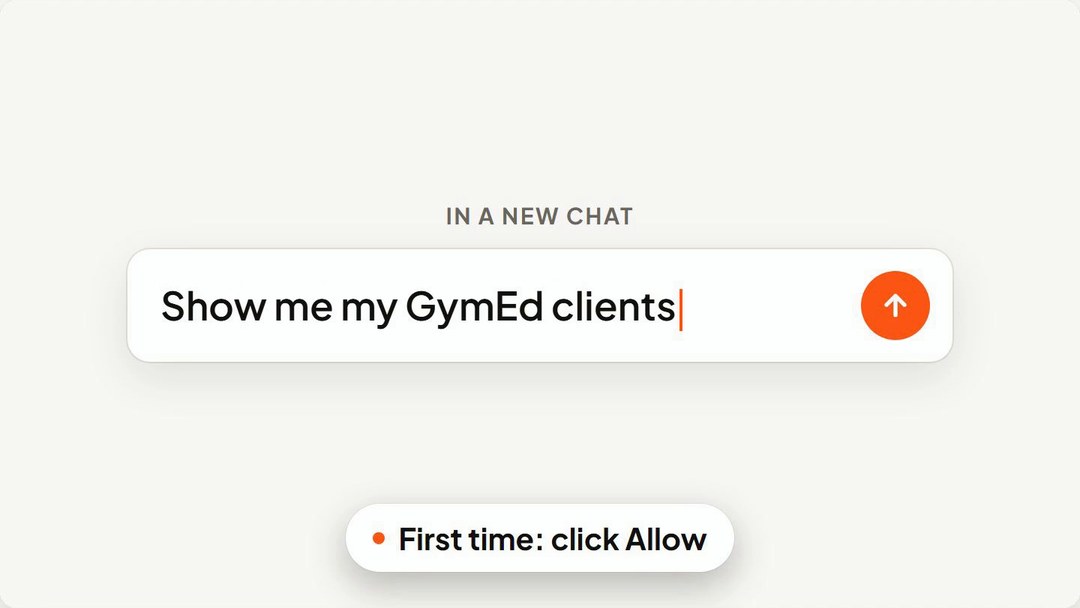
Type Show me my GymEd clients and send it. The first time, Claude asks first. Click Allow.
Now just ask. It works in every new chat while GymEd is on.
Connect GymEd to ChatGPT
You need a paid ChatGPT plan, on a computer. On ChatGPT Business or Enterprise, an admin or owner adds GymEd for the team.
Step 1 of 6
Go to chatgpt.com on a computer. Click Plugins on the far left, or use the button below.
Open ChatGPT Plugins (opens in a new tab)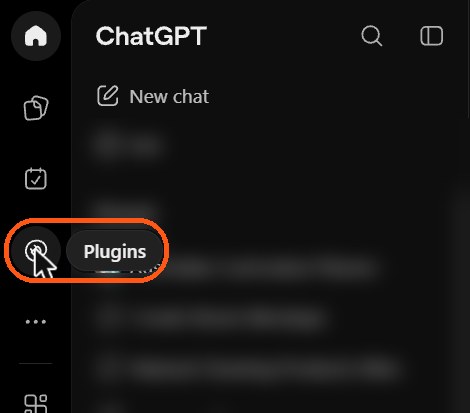
Step 2 of 6
Click Add at the top right. Then click Add custom MCP server.
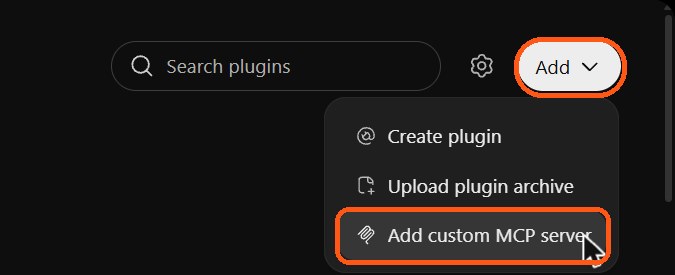
Step 3 of 6
Type GymEd under Name. Paste the address under Connection. Leave Authentication on OAuth.
GymEdhttps://cms.gymed.com.au/mcp/professional 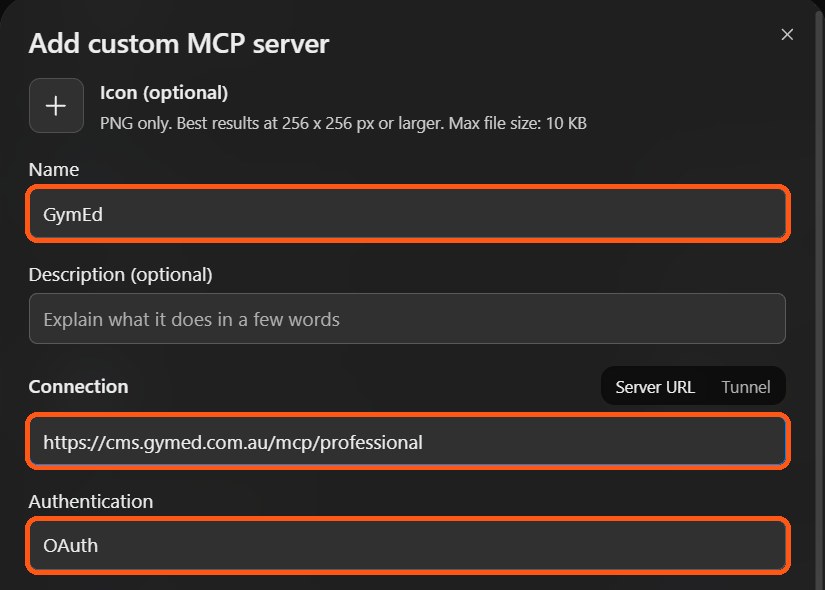
Step 4 of 6
Scroll down. Tick I understand and want to continue. Then click Create as a plugin.
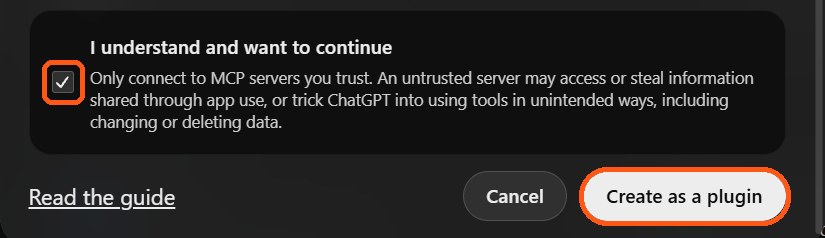
Step 5 of 6
Click Continue to GymEd. A GymEd page opens. Sign in with your GymEd email and password, then allow access. Then you're back in ChatGPT.
No GymEd page? Open Plugins and click GymEd.
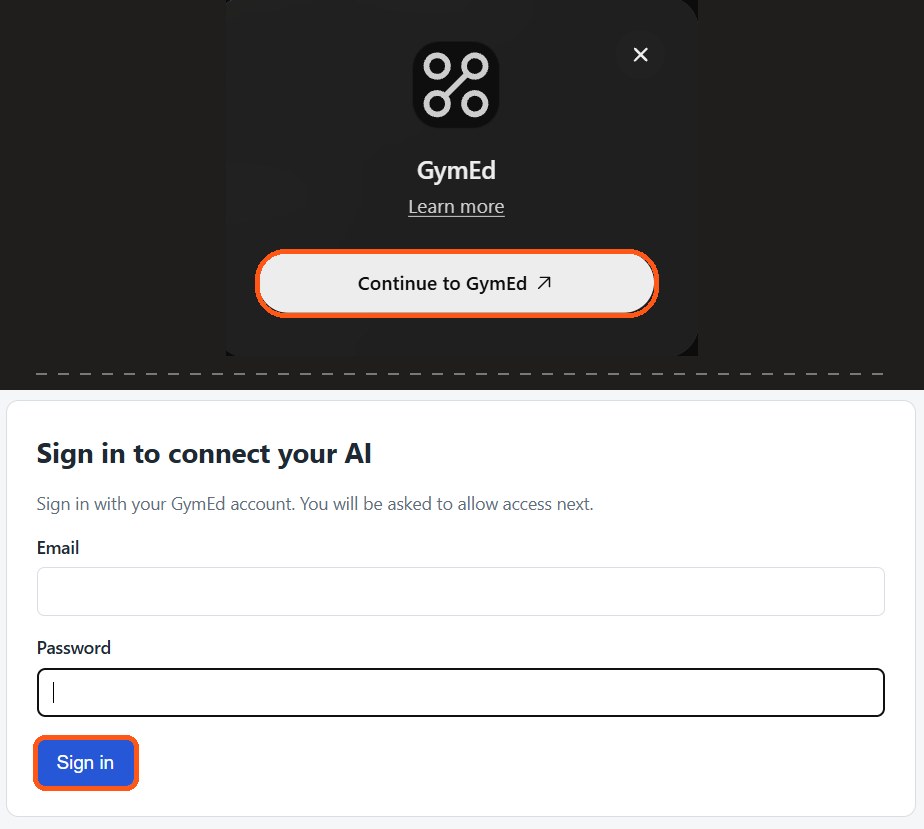
Step 6 of 6
Start a new chat. Type @ and pick GymEd. Then ask: Show me my GymEd clients.
Or open GymEd in Plugins and click Try in chat.
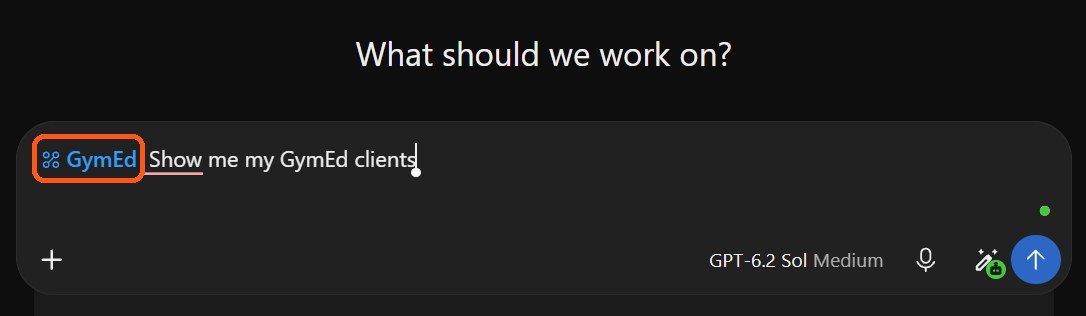
Now just ask. Start each new ask with @GymEd.
Swap Sam for your client's first name. In ChatGPT, start with @GymEd.
No. If you can send an email, you can do this. It takes about 5 minutes, and every step is on this page.
Yes. GymEd works with Claude and ChatGPT. Pick yours in the steps above. ChatGPT needs a paid plan.
A paid one. On ChatGPT Business and Enterprise it can do everything on this page. On some personal plans, OpenAI only lets it read GymEd. It can still write your reports, but it can't build programs or log sessions. Claude's free plan does it all.
Only your own GymEd: your clients, programs, sessions and exercises. It can't see client emails, phone numbers or birthdays. What it reads from GymEd, like names, session notes and pain scores, goes to the company that runs your AI (Anthropic for Claude, OpenAI for ChatGPT), under your own account. Follow your clinic's privacy rules.
It can. That's why the programs it builds are drafts. You check them and publish them yourself. Check every report before you send it.
No. It only acts when you ask it to in a chat, and it can't delete anything. Claude asks before it uses GymEd unless you choose to always allow it. ChatGPT may ask before it makes a change. If you ask it to invite a client, they get a real email, so only ask when you mean it.
Not for Claude. Its free plan works and lets you add one custom connector. If you already use one, remove it or move to a paid Claude plan. ChatGPT needs a paid plan.
Set it up once on a computer first. Claude then works in its phone app too. ChatGPT is added at chatgpt.com on a computer.
On a Claude Team or Enterprise plan, an owner adds GymEd. Then go to Customize, then Connectors. Find GymEd and click Connect. On ChatGPT Business or Enterprise, an admin or owner adds it for the team. Send them this page.
First check you can sign in to GymEd itself. If you can, and your account is from before 17 November 2026, AI access may still be off. Email riley@gymed.com.au and we will turn it on. If GymEd says Reconnect, click it and sign in again.
In Claude, go to Customize, then Connectors. Open GymEd and remove it. To leave it out of one chat, turn it off under the + in that chat. In ChatGPT, open Plugins and click GymEd. Click the three dots, then Uninstall.
This is Claude connected to GymEd. Watch it do the clicking and typing for you. Instead of filling in the new client form, just ask. Claude adds Sam, and GymEd emails the invite. Instead of searching for every exercise and typing in every set and rep, ask for a four week knee program. Claude picks the exercises from the GymEd library and saves a draft. Claude only saves drafts, and it can't delete anything. So you check the program in GymEd, then publish it yourself. Then tell Claude it's published, and ask it to add Sam. Sam starts at week one once they accept the invite. Instead of clicking through every exercise and set, tell Claude what Sam did today. It logs the whole session, with the pain score and how it felt. Always check it in GymEd. Here the sets weren't marked as done, so just tell Claude, and it fixes them. And there it is in GymEd. Open Sam, and you'll see the program Claude built, the session it logged, the pain score, and every set done.
Here's how to connect it. You'll need a computer and your GymEd login. In Claude, click Customize on the left. Then click Connectors at the top. Click Add at the top right, then click Add custom connector. In the first box, type GymEd. In the second box, paste the server address from the guide. Then click Continue. Claude fills in the sign in settings for you, so don't change anything. Scroll down and click Add. A GymEd page opens. Sign in with your normal GymEd email and password. On the next page, allow Claude to use your account. Now start a new chat. Click the plus under the message box, then Connectors. Find GymEd and make sure it's switched on. Try it. Ask Claude to show you your GymEd clients. The first time, Claude checks before it uses GymEd, so click Allow. And that's it. GymEd is connected. Stuck? Just send me a message.
Still stuck? Email Riley. We'll help you set it up.
Try GymEd free for 14 days. Build your first program. Then connect Claude or ChatGPT and just ask.